
KiCad Like a Pro 3e – eBook
-
eBook status1 Lecture
-
00 - Front matter5 Lectures
-
01 - Getting started with PCB design6 Lectures
-
02 – Getting started with KiCad12 Lectures
-
Introduction
-
KiCad Project Manager (main window)
-
Overview of the individual KiCad apps
-
Paths and Libraries
-
(Legacy) KiCad Project Manager (main window)
-
(Legacy) Overview of the individual KiCad apps
-
(Legacy) Paths and Libraries
-
Create a new project from scratch
-
Create a new project from a template
-
KiCad on Mac OS, Linux, Windows
-
(Legacy) Kicad 6 on Mac OS, Linux, Windows
-
(Legacy) Major Differences between KiCad 6.0 and 5.0
-
Introduction
-
03 - Project: A hands-on tour of KiCad - Schematic Design11 Lectures
-
Introduction to schematic design
-
Quick intro to the design workflows
-
The finished KiCad project and directory
-
Start Kicad and create a new project
-
1 - Start Eeschema, setup Sheet
-
2 - Add symbols
-
3 - Arrange, annotate, associate
-
4 - Wiring
-
5 - Nets
-
6 - The Electrical Rules Check
-
7 - Comments with text and graphics
-
Introduction to schematic design
-
04 - Project: A hands-on tour of KiCad - Layout10 Lectures
-
Introduction to layout design and objective of this section
-
1 - Start Pcbnew, import footprints
-
2 - Outline and constraints (edge cut)
-
3 - Move footprints in place
-
4 - Route (add tracks)
-
5 - Refine the outline
-
6 - Silkscreen (text and graphics)
-
7 - Design rules check
-
8 - Export Gerbers and order
-
The manufactured PCB
-
Introduction to layout design and objective of this section
-
05 - Design principles and PCB terms16 Lectures
-
06 - PCB design workflows17 Lectures
-
The KiCad Schematic Design Workflow
-
Schematic Design Step 1: Setup
-
Schematic Design Step 2: Symbols
-
Schematic Design Step 3: AAA (Arrange, Annotate, Associate)
-
Schematic Design Step 4: Wire
-
Schematic Design Step 5: Nets
-
Schematic Design Step 6: Electrical Rules Check
-
Schematic Design Step 7: Comments and Graphics
-
The KiCad Layout Design Workflow
-
Layout Design Step 1: Setup
-
Layout Design Step 2: Outline and constraints
-
Layout Design Step 3: Place footprints
-
Layout Design Step 4a: Route
-
Layout Design Step 4b: Copper fills
-
Layout Design Step 5: Silkscreen
-
Layout Design Step 6: Design rules check
-
Layout Design Step 7: Export & Manufacture
-
The KiCad Schematic Design Workflow
-
07 - Fundamental Kicad how-to: Symbols and Eeschema17 Lectures
-
About this section
-
Left toolbar overview
-
Top toolbar overview
-
Right toolbar overview
-
Schematic editor preferences
-
How to find a symbol with the Chooser
-
How to find schematic symbols on the Internet
-
How to install symbol libraries in bulk
-
How to create a custom symbol
-
How to associate a symbol with a footprint
-
Net labels
-
Net classes
-
Hierarchical sheets
-
Global labels
-
Hierarchical labels and import sheet pin
-
Electrical rules and customization
-
Bulk editing of schematic elements
-
About this section
-
08 - Fundamental Kicad how-to: Footprints and Pcbnew31 Lectures
-
Introduction
-
Left toolbar overview
-
Top toolbar overview
-
Top toolbar Row 1
-
Top toolbar Row 2
-
Right toolbar overview
-
Right toolbar main buttons
-
Right toolbar overview - Appearance
-
Layout editor preferences (Preferences window, PCB Editor)
-
Board Setup
-
Board Setup - Board Stackup
-
Board Setup - Text & Graphics
-
Board Setup - Design Rules and net classes
-
Board Setup - Design Rules - Custom Rules and violation severity
-
How to find and use a footprint
-
Footprint sources on the Internet
-
How to install footprint libraries
-
Filled zones
-
Keep-out zones
-
Interactive router
-
Length measuring tools
-
Bulk editing
-
Create a custom footprint, introduction
-
Create a new library and footprint
-
Create a custom footprint, 1, Fabrication layer
-
Create a custom footprint, 2, Pads
-
Create a custom footprint, 3, Courtyard layer
-
Create a custom footprint, 4, Silkscreen layer
-
Use the new footprint
-
Finding and using a 3D shape for a footprint
-
How to export and test Gerber files
-
Introduction
-
09 - Project: Design a simple breadboard power supply PCB23 Lectures
-
Introduction
-
Schematic design editing
-
Schema 1 - Setup
-
Schema 2 - Symbols
-
Edit Component values
-
Schema 3 - Arrange, Annotate
-
Schema 3 - Associate
-
Schema 4 - Wiring
-
Schema 5 & 6 - Nets and Electrical Rules Check
-
Schema 7 - Comments
-
Introduction to layout editing
-
Layout 1 - Setup
-
Layout 2 - Outline and constraints
-
Layout 3 - Place footprints
-
Layout 2 supplemental - Refine outline
-
Layout 4 - Routing
-
Layout 5 - Copper fills
-
Layout 6 - Silkscreen
-
Layout 7 - Design Rules Check
-
Layout 8 - Export and Manufacture
-
Finding and correcting a design defect
-
Fix the schematic
-
Fix the layout
-
Introduction
-
10 - Project: A 4 x 8 x 8 LED matrix array clock25 Lectures
-
Project - Introduction
-
Schematic design
-
Schema 1 - Setup
-
Schema 2 - Symbols
-
Schema 3 - Arrange, Annotate
-
Schema 3 - Associate
-
Schema 4 - Wiring
-
Schema 5 - Nets
-
Schema 6 - Electrical Rules Check
-
Schema 7 - Comments
-
Schema - Last-minute edits
-
Layout design
-
Layout 1 - Setup
-
Layout 2 - Outline and constraints
-
Layout 3 - Place components
-
Layout 2 - Refine outline
-
Layout 3 - Move footprints to back layer
-
Layout 4 - Route
-
Layout 4 - Copper fills
-
Layout 5 - Silkscreen
-
Layout 6 - Design Rules Check
-
Layout 7 - Manufacture
-
Bonus - 3D shapes
-
Bonus - Found a bug in the schematic! (and fix)
-
The assembled and working PCB
-
Project - Introduction
-
11 - Project: MCU datalogger with build-in 512K EEPROM and clock37 Lectures
-
Project - Introduction
-
Create the new project and create new Git repository
-
Schematic design
-
Schema 1 - Setup
-
Schema 2 - Symbols
-
Schema 2 - Sheet 2
-
Schema 3 - Arrange, Annotate
-
Edit Component values
-
Schema 3 - Associate
-
Schema 4 - Wiring of sheet 1
-
Schema 4 - Wiring of sheet 2
-
Schema 5 - Nets
-
Schema 6 - Electrical Rules Check
-
Schema 7 - Comments
-
Git, setup in a 2-layer PCB branch
-
Layout design
-
Layout 1 - Setup
-
Layout 2 - Outline and constraints
-
Layout 3 - Place components
-
Layout 2 - Outline refinement
-
Layout 4 - Route
-
Layout 4 - Copper fills
-
Layout 4 - Routing improvements
-
Layout 5 - Silkscreen
-
Layout 4 - Routing violations and complete silkscreen
-
Layout 6 - Design Rules Check
-
Layout 7 - Manufacture
-
3D shapes
-
Merge 2-layer branch to main
-
Design 4 Layer PCB in new Git branch
-
Four-layer PCB routing
-
Four-layer PCB manufacturing
-
Updating layout from changes to the schematic with Git
-
Finding and correcting a design defect
-
Fix the schematic
-
Fix the 2 layer PCB layout
-
Fix the 4 layer PCB layout
-
Project - Introduction
-
12 - Project: An ESP32 clone25 Lectures
-
Project - Introduction
-
Schema 1 - New KiCad project and Schematic Setup
-
Schema 2 - Symbols
-
Schema 3 - Annotate and set component values
-
Schema 3 - Arrange
-
Schema 3 - Associate
-
Schema 4 - Wiring
-
Schema 5 - Nets and Net Classes
-
Schema 6 - Electrical Rules Check
-
Schema 7 - Comments
-
Layout - Introduction
-
Layout 1 - Setup
-
Layout 2 - Outline and constraints
-
Layout 3 - Place components
-
Layout 2 supplemental - refine outline
-
Layout 4 - Route
-
Layout 4 - Copper fills and keep out areas
-
Layout 5 - Silkscreen
-
Layout 4 - Routing improvements
-
Layout 6 - Design Rules Check
-
Layout 7 - Manufacture
-
3D shapes
-
Finding and correcting a design defect
-
Fix the schematic
-
Fix the layout
-
Project - Introduction
-
13 - Recipes56 Lectures
-
How to create a custom graphic
-
Change a symbol in bulk
-
Change a footprint in bulk
-
Interactive delete
-
Find and Replace (Eeschema)
-
Edit Text & Graphics Properties
-
Edit Track & Via Properties (Pcbnew)
-
Text variables
-
Board Setup - pre-defined sizes for tracks and vias
-
Board Setup - Design rules violation severity
-
Board Setup - Custom design rules
-
Schematic Setup - Electrical Rules and violation severity
-
Schematic Setup - Electrical Rules and Pin conflicts map
-
Field name templates
-
Bill of Materials method 1: Pcbnew
-
Bill of Materials method 2: Eeschema
-
Bill of Materials method 3: Interactive HTML BOM plugin
-
Import components from Snapeda
-
The Freerouting autorouter introduction
-
Install and start FreeRouting on MacOS
-
Install and start FreeRouting on Linux Kubuntu
-
Install and start FreeRouting on Windows
-
How to use the Freerouting autorouter 2-layer example
-
How to use the Freerouting autorouter 4-layer example
-
Pcbnew Inspection menu
-
Single-track and differential pair routing
-
Track length tuning
-
Differential pair skew tuning
-
Interactive router modes
-
The footprint wizard
-
Pin and wire highlighter tool
-
Pcbnew Origins
-
How to create custom sizes for tracks and vias
-
KiCad project management with Git
-
Install Git
-
Git configuration
-
Create a new KiCad project Git repository
-
How to ignore files with Gitignore
-
Basic Git commands: add, commit, log, diff
-
Basic Git commands: branch
-
Basic Git commands: merge
-
Sharing your KiCad project on GitHub
-
How to customize the editor color scheme
-
How to import an EAGLE, Altium, or Cadstar project
-
The circuit simulator
-
Prepare the circuit for simulation
-
Configure the simulator
-
Simulate
-
Import a KiCad 5 project
-
KiCad project templates
-
Use a system project template
-
Create a user project template
-
Archive/un-archive and share a project
-
How to use buses
-
Calculate the width of a trace
-
Design a custom schematic sheet
-
How to create a custom graphic
-
14 - What's new in KiCad 714 Lectures
-
Introduction
-
14.2. Text and text boxes
-
14.3. Plugin and Content Manager: Plugins
-
14.4. Plugin and Content Manager: Libraries
-
14.5. Plugin and Content Manager: Themes
-
14.6. Drag and drop
-
14.7. Command Line Interface
-
14.8. Orthogonal dragging
-
14.9. PDF export improvements
-
14.10. PCB editor - Unroute selected route
-
14.11. PCB editor - Automatically complete trace route
-
14.12. Search panel
-
14.13. Improved Pack & Move footprints
-
14.14. More information and documentation about KiCad 7
-
Introduction
-
XX – Content by contributing authors4 Lectures
1 – Start Eeschema, setup Sheet
In this chapter, you will complete step one of the schematic design workflow that you learned about in the previous chapter.
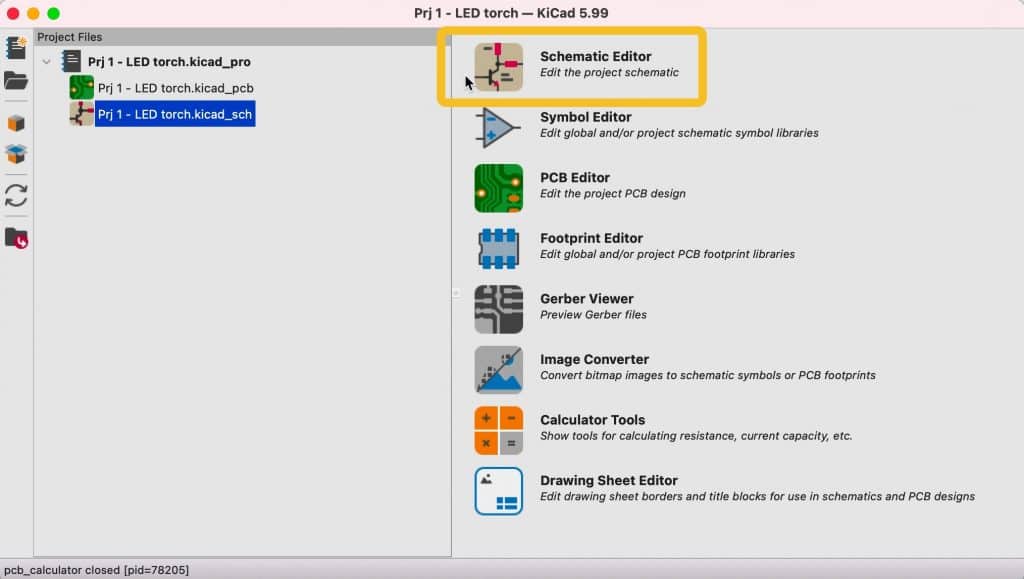
I will continue where I left off in the previous chapter. At this point, I have created a new KiCad project, and the main KiCad window is open. Click on the schematic editor button at the top of the right pane in Figure 3.5.6 (below).
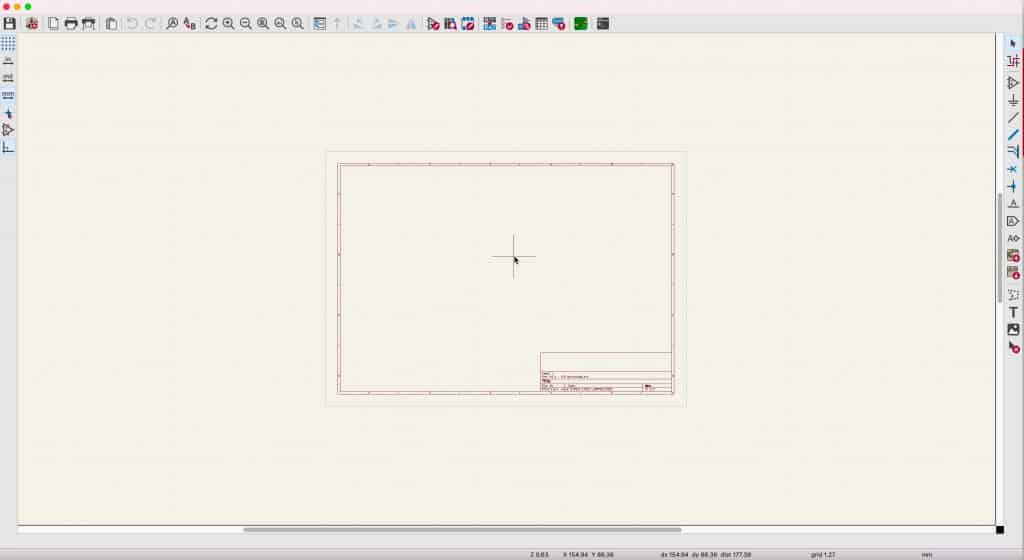
This will bring up the Eeschema window with a blank design editor (Figure 3.5.2):
It is worth taking a few minutes to look at some of the most important user interface tools and techniques you will use in all KiCad projects. Let’s start with the mouse.
I strongly recommend that you use a mouse with two buttons and a scroll wheel. I use a Logitech MX Master 2S (Figure 3.5.3):

Apart from the regular functions assigned to the left and right buttons, I use the scroll wheel to zoom in and out. In addition, the scroll wheel of this mouse is a middle button that allows me to pan. Because zooming and panning are so helpful in any CAD application, it is important to have a mouse that provides easy access to those functions.
To zoom, move the mouse pointer to the location in the editor that you want to zoom in, and then turn the scroll wheel. The zoom will always centre on the crosshair pointer.
To pan, press and hold the scroll wheel button and move the mouse to pan. It is also possible to zoom while you pan.
You can expose the context menu by pressing the right mouse button. Just click anywhere in the editor sheet, and click. The exact contents of the context menu will depend on what it is that you clicked on. A wire will give you a different context menu to a symbol, and so on (Figure 3.5.4).
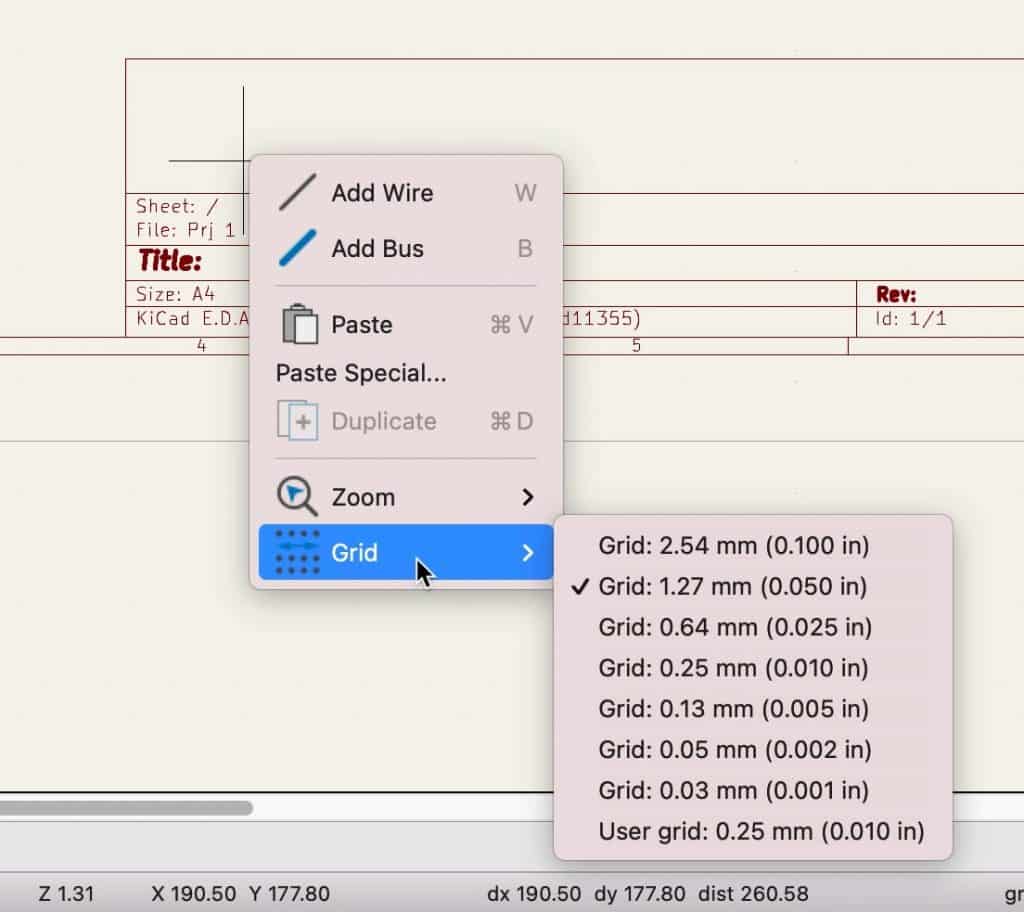
In the example above, I have right-clicked in an empty part of the editor sheet. Notice that the context menu contains submenus such as Zoom and Grid.
The editor sheet has a coordinate system that starts at the top left corner. The horizontal axis is the X, and the vertical is Y. There is a grid that supports drawing using a visual guide for the alignment of the various objects. There is also a snap-to-grid option to ensure perfect alignment. I use this option to ensure that wires and pins are aligned. At the bottom of the Eeschema window is the status bar. On its right side, you will find information about the current coordinates of the cursor, the distance between the cursor and the location where your reset the ruler, the grid size, and the measurement unit used (Figure 3.5.5).
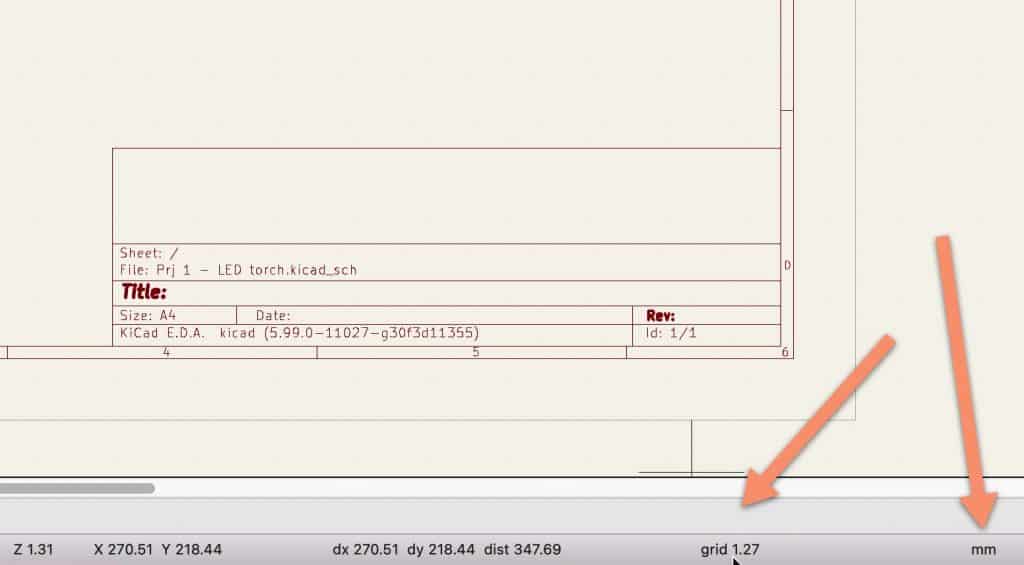
In the example above, my grid is set to 1.27 mm. You can change your grid and unit settings via the buttons of the left toolbar (Figure 3.5.6):
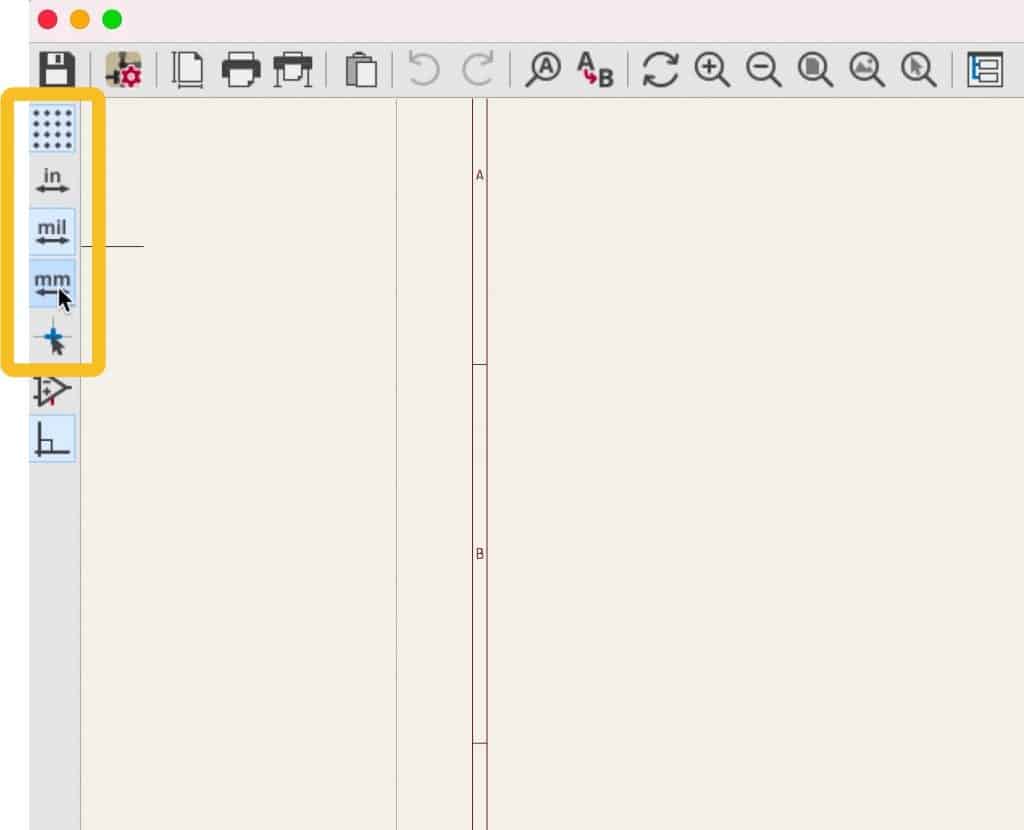
You can choose your preferred unit between millimeters, mils and inches, turn the grid lines on or off, and choose the type of cursor (regular or full crosshairs).
You can further control the appearance and operation of the grid via the Preferences window. Open the Preferences window, then click on Display Options under Schematic Editor (Figure 3.5.7):
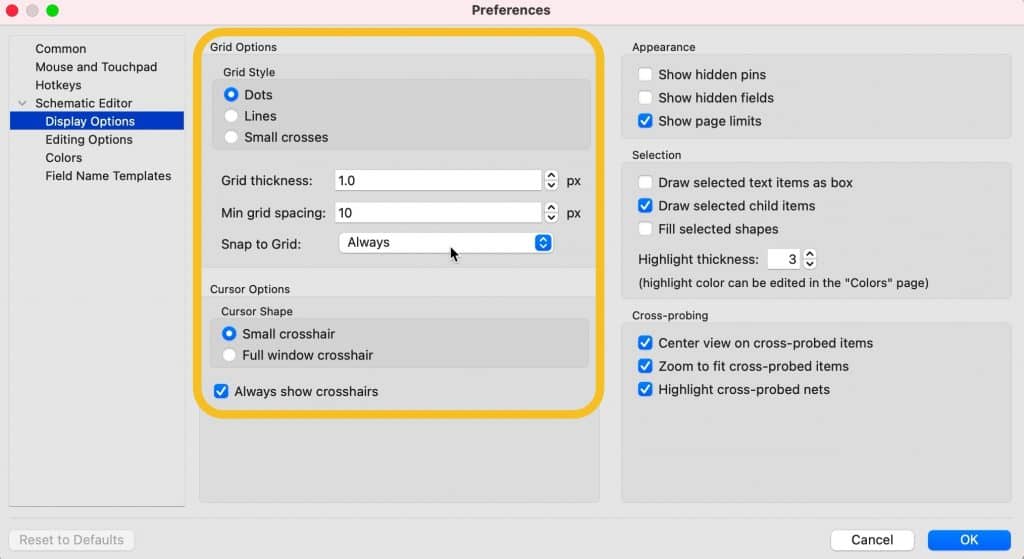
You can choose between three grid styles, two cursors, control the grid line thickness, minimum spacing, and enable the snap to grid feature (default is on, and I suggest you leave it at that).
Next, still in Preferences, click on Editing Options. You can see the various options there with my settings below (Figure 3.5.8):
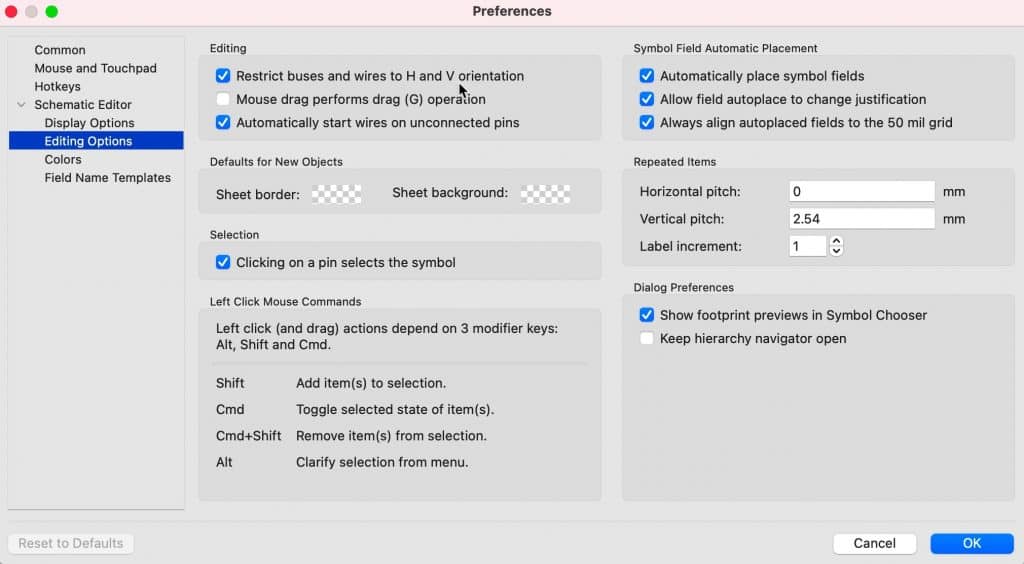
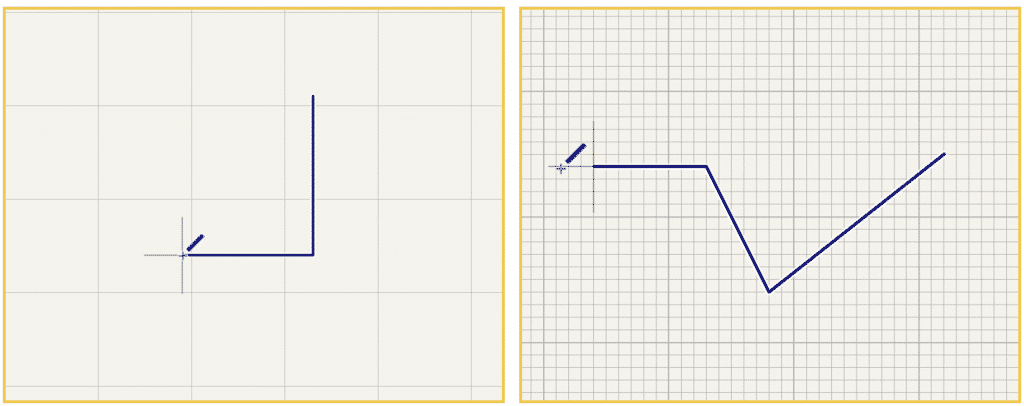
In the Editing group, the first option sets the orientation restrictions for wires. If checked, you will only be able to draw horizontal and vertical wire segments. I believe that with this setting, you will be able to produce more visually pleasing schematics, so I suggest you leave it checked. You can see an example below; the wires in the left contain horizontal and vertical segments only, and the one in the right has wire segments in non-90 degree angles (Figure 3.5.9).
Take a few moments to explore the options in the Schematic Editor tabs in the Preferences window before you continue (especially the ones in Display Options and Editing Options). You can learn more about these options in a dedicated chapter later in this book.
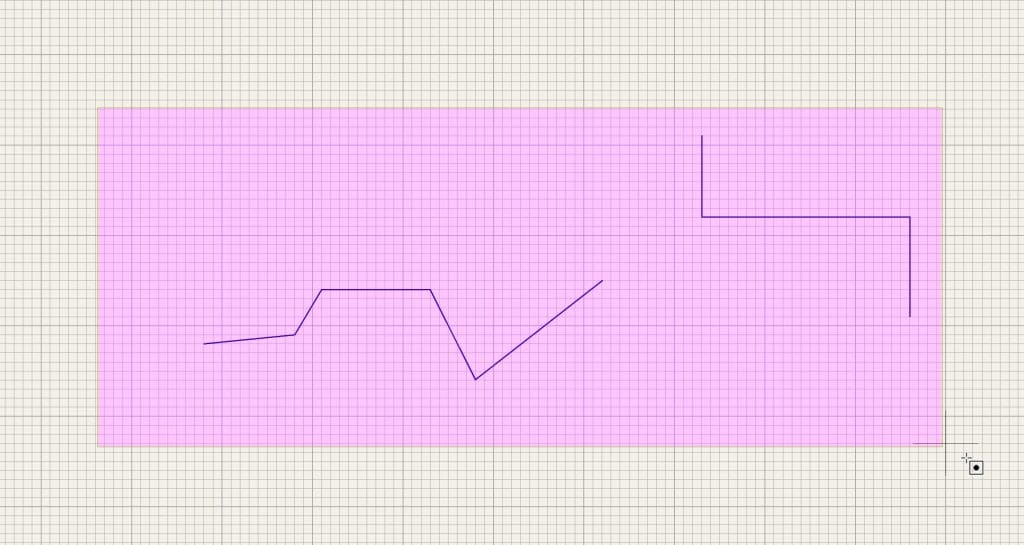
Remember that you can use the ESC key (type ESC twice) to exit any activated tool. To delete multiple items in a schematic, use your mouse to enclose those items in a box and highlight them, and then hit the Delete key (Figure 3.5.10):
To configure the grid size and the quick-select settings, you use the Grid Settings window, accessible from the View menu (Figure 3.5.11).
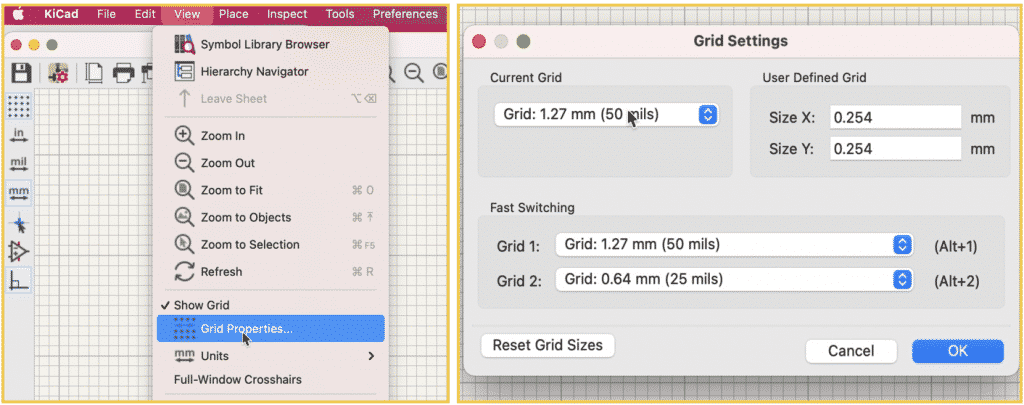
Generally, in busy schematics, you will want to use a small grid size. You can also set grid size keyboard shortcuts (Alt-1 and Alt-2) to specific grid sizes. You can see my settings in the figure above.
The last item in my to-do list in this first step of the schematic design workflow is to fill in the project information in the Page Settings window. Access the Page Settings window from the File menu (Figure 3.5.12):
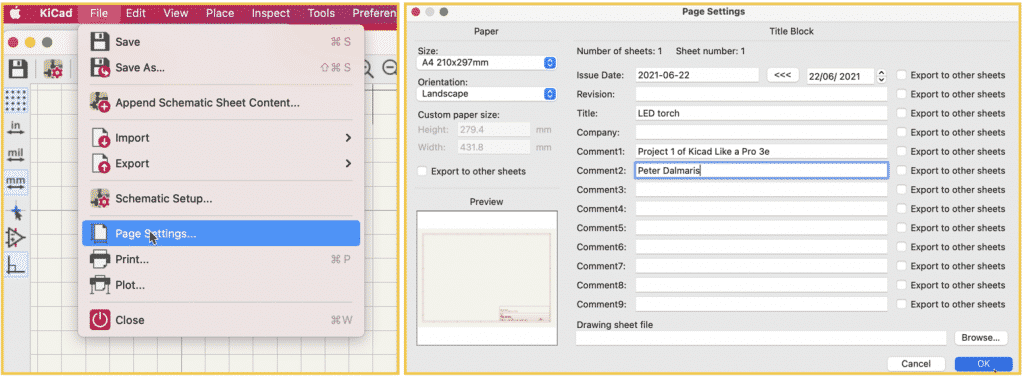
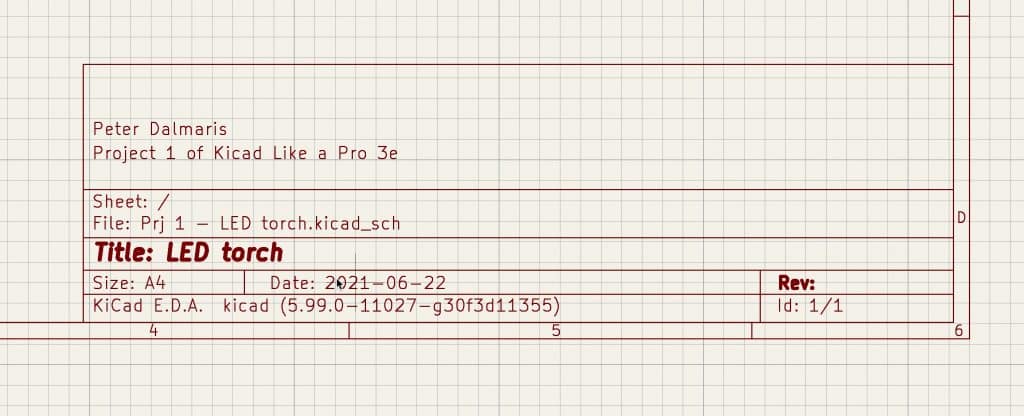
The fields in the Pages Settings window can contain any text that you type in and will appear in the schematic sheet label (bottom right corner). You can provide any information you think is helpful to the reader of the schematic.
Once completed, click OK, and notice how the information you entered appears in the schematic sheet (Figure 3.5.13):
Step one of the schematic design workflow is now complete. Let’s continue with step two in the next chapter.