
KiCad Like a Pro 3e – eBook
-
eBook status1 Lecture
-
00 - Front matter5 Lectures
-
01 - Getting started with PCB design6 Lectures
-
02 – Getting started with KiCad12 Lectures
-
Introduction
-
KiCad Project Manager (main window)
-
Overview of the individual KiCad apps
-
Paths and Libraries
-
(Legacy) KiCad Project Manager (main window)
-
(Legacy) Overview of the individual KiCad apps
-
(Legacy) Paths and Libraries
-
Create a new project from scratch
-
Create a new project from a template
-
KiCad on Mac OS, Linux, Windows
-
(Legacy) Kicad 6 on Mac OS, Linux, Windows
-
(Legacy) Major Differences between KiCad 6.0 and 5.0
-
Introduction
-
03 - Project: A hands-on tour of KiCad - Schematic Design11 Lectures
-
Introduction to schematic design
-
Quick intro to the design workflows
-
The finished KiCad project and directory
-
Start Kicad and create a new project
-
1 - Start Eeschema, setup Sheet
-
2 - Add symbols
-
3 - Arrange, annotate, associate
-
4 - Wiring
-
5 - Nets
-
6 - The Electrical Rules Check
-
7 - Comments with text and graphics
-
Introduction to schematic design
-
04 - Project: A hands-on tour of KiCad - Layout10 Lectures
-
Introduction to layout design and objective of this section
-
1 - Start Pcbnew, import footprints
-
2 - Outline and constraints (edge cut)
-
3 - Move footprints in place
-
4 - Route (add tracks)
-
5 - Refine the outline
-
6 - Silkscreen (text and graphics)
-
7 - Design rules check
-
8 - Export Gerbers and order
-
The manufactured PCB
-
Introduction to layout design and objective of this section
-
05 - Design principles and PCB terms16 Lectures
-
06 - PCB design workflows17 Lectures
-
The KiCad Schematic Design Workflow
-
Schematic Design Step 1: Setup
-
Schematic Design Step 2: Symbols
-
Schematic Design Step 3: AAA (Arrange, Annotate, Associate)
-
Schematic Design Step 4: Wire
-
Schematic Design Step 5: Nets
-
Schematic Design Step 6: Electrical Rules Check
-
Schematic Design Step 7: Comments and Graphics
-
The KiCad Layout Design Workflow
-
Layout Design Step 1: Setup
-
Layout Design Step 2: Outline and constraints
-
Layout Design Step 3: Place footprints
-
Layout Design Step 4a: Route
-
Layout Design Step 4b: Copper fills
-
Layout Design Step 5: Silkscreen
-
Layout Design Step 6: Design rules check
-
Layout Design Step 7: Export & Manufacture
-
The KiCad Schematic Design Workflow
-
07 - Fundamental Kicad how-to: Symbols and Eeschema17 Lectures
-
About this section
-
Left toolbar overview
-
Top toolbar overview
-
Right toolbar overview
-
Schematic editor preferences
-
How to find a symbol with the Chooser
-
How to find schematic symbols on the Internet
-
How to install symbol libraries in bulk
-
How to create a custom symbol
-
How to associate a symbol with a footprint
-
Net labels
-
Net classes
-
Hierarchical sheets
-
Global labels
-
Hierarchical labels and import sheet pin
-
Electrical rules and customization
-
Bulk editing of schematic elements
-
About this section
-
08 - Fundamental Kicad how-to: Footprints and Pcbnew31 Lectures
-
Introduction
-
Left toolbar overview
-
Top toolbar overview
-
Top toolbar Row 1
-
Top toolbar Row 2
-
Right toolbar overview
-
Right toolbar main buttons
-
Right toolbar overview - Appearance
-
Layout editor preferences (Preferences window, PCB Editor)
-
Board Setup
-
Board Setup - Board Stackup
-
Board Setup - Text & Graphics
-
Board Setup - Design Rules and net classes
-
Board Setup - Design Rules - Custom Rules and violation severity
-
How to find and use a footprint
-
Footprint sources on the Internet
-
How to install footprint libraries
-
Filled zones
-
Keep-out zones
-
Interactive router
-
Length measuring tools
-
Bulk editing
-
Create a custom footprint, introduction
-
Create a new library and footprint
-
Create a custom footprint, 1, Fabrication layer
-
Create a custom footprint, 2, Pads
-
Create a custom footprint, 3, Courtyard layer
-
Create a custom footprint, 4, Silkscreen layer
-
Use the new footprint
-
Finding and using a 3D shape for a footprint
-
How to export and test Gerber files
-
Introduction
-
09 - Project: Design a simple breadboard power supply PCB23 Lectures
-
Introduction
-
Schematic design editing
-
Schema 1 - Setup
-
Schema 2 - Symbols
-
Edit Component values
-
Schema 3 - Arrange, Annotate
-
Schema 3 - Associate
-
Schema 4 - Wiring
-
Schema 5 & 6 - Nets and Electrical Rules Check
-
Schema 7 - Comments
-
Introduction to layout editing
-
Layout 1 - Setup
-
Layout 2 - Outline and constraints
-
Layout 3 - Place footprints
-
Layout 2 supplemental - Refine outline
-
Layout 4 - Routing
-
Layout 5 - Copper fills
-
Layout 6 - Silkscreen
-
Layout 7 - Design Rules Check
-
Layout 8 - Export and Manufacture
-
Finding and correcting a design defect
-
Fix the schematic
-
Fix the layout
-
Introduction
-
10 - Project: A 4 x 8 x 8 LED matrix array clock25 Lectures
-
Project - Introduction
-
Schematic design
-
Schema 1 - Setup
-
Schema 2 - Symbols
-
Schema 3 - Arrange, Annotate
-
Schema 3 - Associate
-
Schema 4 - Wiring
-
Schema 5 - Nets
-
Schema 6 - Electrical Rules Check
-
Schema 7 - Comments
-
Schema - Last-minute edits
-
Layout design
-
Layout 1 - Setup
-
Layout 2 - Outline and constraints
-
Layout 3 - Place components
-
Layout 2 - Refine outline
-
Layout 3 - Move footprints to back layer
-
Layout 4 - Route
-
Layout 4 - Copper fills
-
Layout 5 - Silkscreen
-
Layout 6 - Design Rules Check
-
Layout 7 - Manufacture
-
Bonus - 3D shapes
-
Bonus - Found a bug in the schematic! (and fix)
-
The assembled and working PCB
-
Project - Introduction
-
11 - Project: MCU datalogger with build-in 512K EEPROM and clock37 Lectures
-
Project - Introduction
-
Create the new project and create new Git repository
-
Schematic design
-
Schema 1 - Setup
-
Schema 2 - Symbols
-
Schema 2 - Sheet 2
-
Schema 3 - Arrange, Annotate
-
Edit Component values
-
Schema 3 - Associate
-
Schema 4 - Wiring of sheet 1
-
Schema 4 - Wiring of sheet 2
-
Schema 5 - Nets
-
Schema 6 - Electrical Rules Check
-
Schema 7 - Comments
-
Git, setup in a 2-layer PCB branch
-
Layout design
-
Layout 1 - Setup
-
Layout 2 - Outline and constraints
-
Layout 3 - Place components
-
Layout 2 - Outline refinement
-
Layout 4 - Route
-
Layout 4 - Copper fills
-
Layout 4 - Routing improvements
-
Layout 5 - Silkscreen
-
Layout 4 - Routing violations and complete silkscreen
-
Layout 6 - Design Rules Check
-
Layout 7 - Manufacture
-
3D shapes
-
Merge 2-layer branch to main
-
Design 4 Layer PCB in new Git branch
-
Four-layer PCB routing
-
Four-layer PCB manufacturing
-
Updating layout from changes to the schematic with Git
-
Finding and correcting a design defect
-
Fix the schematic
-
Fix the 2 layer PCB layout
-
Fix the 4 layer PCB layout
-
Project - Introduction
-
12 - Project: An ESP32 clone25 Lectures
-
Project - Introduction
-
Schema 1 - New KiCad project and Schematic Setup
-
Schema 2 - Symbols
-
Schema 3 - Annotate and set component values
-
Schema 3 - Arrange
-
Schema 3 - Associate
-
Schema 4 - Wiring
-
Schema 5 - Nets and Net Classes
-
Schema 6 - Electrical Rules Check
-
Schema 7 - Comments
-
Layout - Introduction
-
Layout 1 - Setup
-
Layout 2 - Outline and constraints
-
Layout 3 - Place components
-
Layout 2 supplemental - refine outline
-
Layout 4 - Route
-
Layout 4 - Copper fills and keep out areas
-
Layout 5 - Silkscreen
-
Layout 4 - Routing improvements
-
Layout 6 - Design Rules Check
-
Layout 7 - Manufacture
-
3D shapes
-
Finding and correcting a design defect
-
Fix the schematic
-
Fix the layout
-
Project - Introduction
-
13 - Recipes56 Lectures
-
How to create a custom graphic
-
Change a symbol in bulk
-
Change a footprint in bulk
-
Interactive delete
-
Find and Replace (Eeschema)
-
Edit Text & Graphics Properties
-
Edit Track & Via Properties (Pcbnew)
-
Text variables
-
Board Setup - pre-defined sizes for tracks and vias
-
Board Setup - Design rules violation severity
-
Board Setup - Custom design rules
-
Schematic Setup - Electrical Rules and violation severity
-
Schematic Setup - Electrical Rules and Pin conflicts map
-
Field name templates
-
Bill of Materials method 1: Pcbnew
-
Bill of Materials method 2: Eeschema
-
Bill of Materials method 3: Interactive HTML BOM plugin
-
Import components from Snapeda
-
The Freerouting autorouter introduction
-
Install and start FreeRouting on MacOS
-
Install and start FreeRouting on Linux Kubuntu
-
Install and start FreeRouting on Windows
-
How to use the Freerouting autorouter 2-layer example
-
How to use the Freerouting autorouter 4-layer example
-
Pcbnew Inspection menu
-
Single-track and differential pair routing
-
Track length tuning
-
Differential pair skew tuning
-
Interactive router modes
-
The footprint wizard
-
Pin and wire highlighter tool
-
Pcbnew Origins
-
How to create custom sizes for tracks and vias
-
KiCad project management with Git
-
Install Git
-
Git configuration
-
Create a new KiCad project Git repository
-
How to ignore files with Gitignore
-
Basic Git commands: add, commit, log, diff
-
Basic Git commands: branch
-
Basic Git commands: merge
-
Sharing your KiCad project on GitHub
-
How to customize the editor color scheme
-
How to import an EAGLE, Altium, or Cadstar project
-
The circuit simulator
-
Prepare the circuit for simulation
-
Configure the simulator
-
Simulate
-
Import a KiCad 5 project
-
KiCad project templates
-
Use a system project template
-
Create a user project template
-
Archive/un-archive and share a project
-
How to use buses
-
Calculate the width of a trace
-
Design a custom schematic sheet
-
How to create a custom graphic
-
14 - What's new in KiCad 714 Lectures
-
Introduction
-
14.2. Text and text boxes
-
14.3. Plugin and Content Manager: Plugins
-
14.4. Plugin and Content Manager: Libraries
-
14.5. Plugin and Content Manager: Themes
-
14.6. Drag and drop
-
14.7. Command Line Interface
-
14.8. Orthogonal dragging
-
14.9. PDF export improvements
-
14.10. PCB editor - Unroute selected route
-
14.11. PCB editor - Automatically complete trace route
-
14.12. Search panel
-
14.13. Improved Pack & Move footprints
-
14.14. More information and documentation about KiCad 7
-
Introduction
-
XX – Content by contributing authors4 Lectures
3 – Arrange, annotate, associate
In this chapter, you will complete step three of the schematic design workflow, that you learned about in the second chapter of this part of the book.
This chapter will show you how to arrange the symbols you added to the editor in their final positions, annotate them with unique reference IDs, and associate them with the appropriate footprints.
Arrange
Start by moving the symbols. After finding them in the symbol chooser, I simply placed the symbols in random locations in the previous chapter. Now, I will put them in locations that make it easy to wire them to become part of a valid circuit.
You can move a symbol by selecting it with your mouse, then click on the selected symbol and hold, while you move the mouse. The grid size and snap-to-grid function are important here. You can use the fast-switch grid size to experiment with the placement options. My fast-switch hotkey (Alt-1 and Alt-2) allow me to switch between 2.54 mm and 1.27 mm grid sizes. As the grid size becomes smaller, you can place the symbols with finer positioning control. For the circuit we are working on, 2.54 mm for the grid size is sufficient, so I’ll set it to that. You may also turn on the gridlines so that you can see the grid instead of only “feeling” it as a result of the snap-to-grid function.
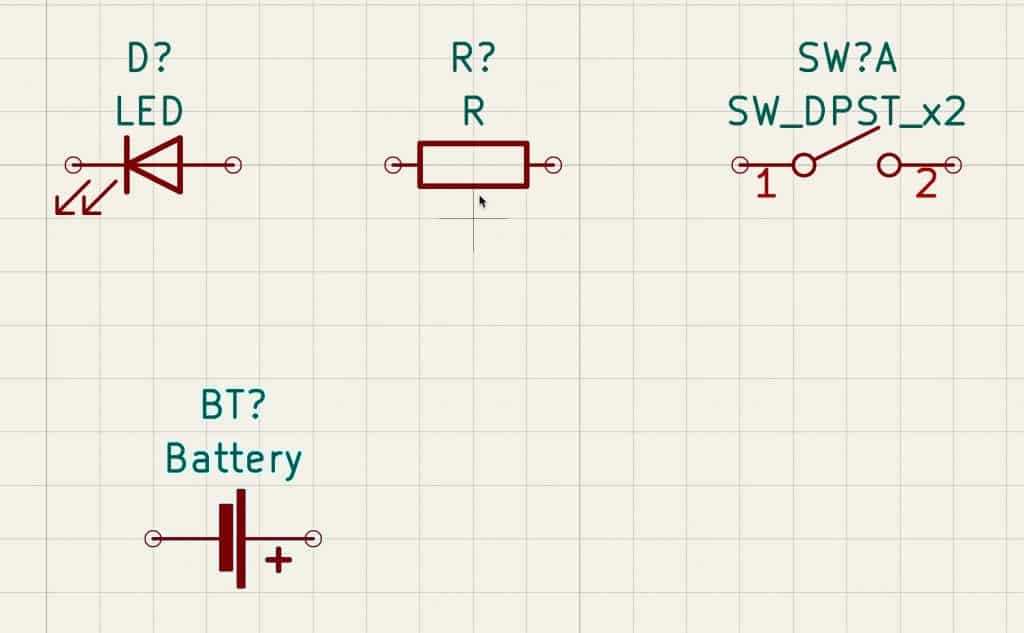
Go ahead and place the symbols as in Figure 3.7.1 (below).
Remember: you can rotate a symbol using the “R” hotkey after selecting it.
Annotate
Next, I will annotate the symbols. Annotation can be done manually or (preferable) automatic, and it entails setting unique reference IDs for each symbol.
First, what is the reference identifier? In Figure 3.7.1, notice that each symbol has a designator such as “D”, “R”, or “BT”, followed by a question mark. This is the symbol’s reference identifier. The reference identifier is a unique name for this symbol that we can use in the schematic and the bill of materials as an identifier for the symbol. The question mark indicates that the designator for the symbol is not yet set. To set it manually, double-click on the symbol to bring up its properties window (Figure 3.7.2).
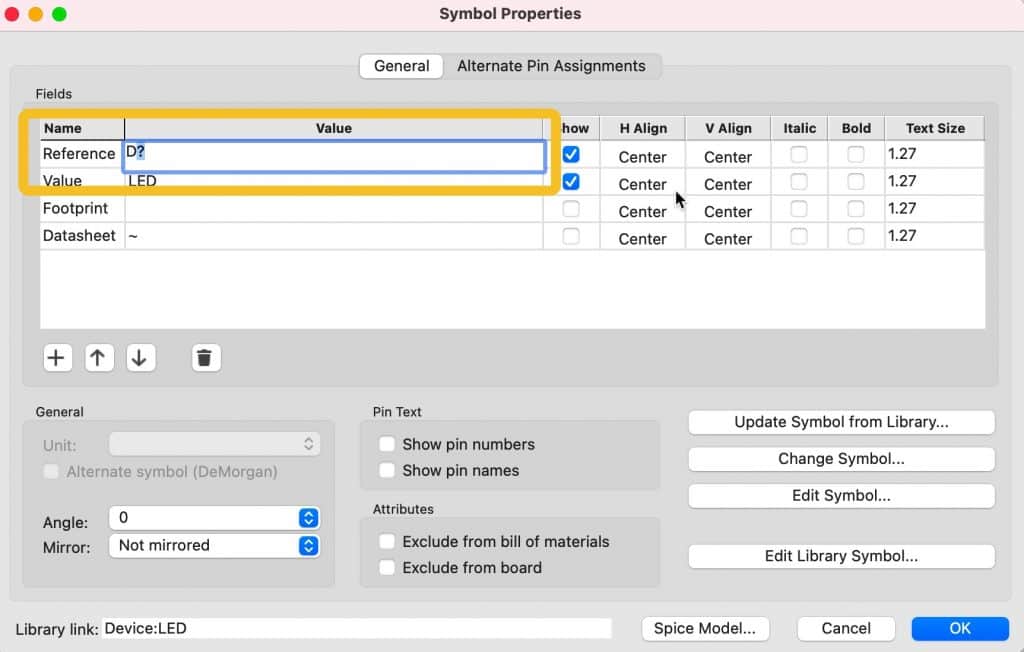
You can set the reference ID manually by editing the Reference field in the properties window. If you choose the manual method (which I discourage), you will have to keep track of the identifier assigned and ensure there are no duplicates. Click “Cancel” to dismiss the properties window.
A better way to set the identifiers is to use the automatic annotator tool. Bring up the schematic annotator window by clicking the Annotator button from the top toolbar (Figure 3.7.3).
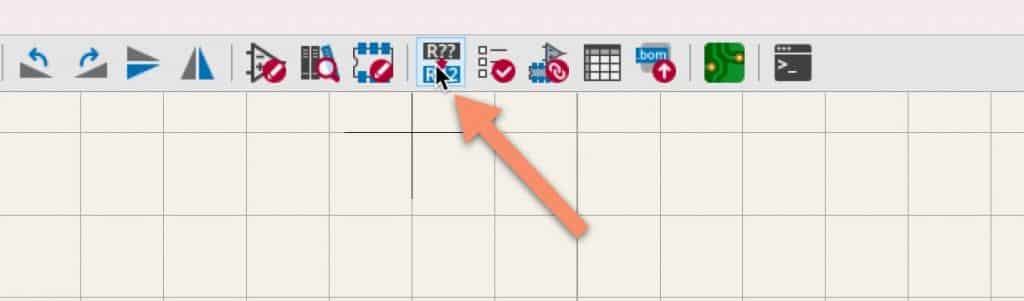
This will bring up the Annotator tool window that looks like this (Figure 3.7.4):
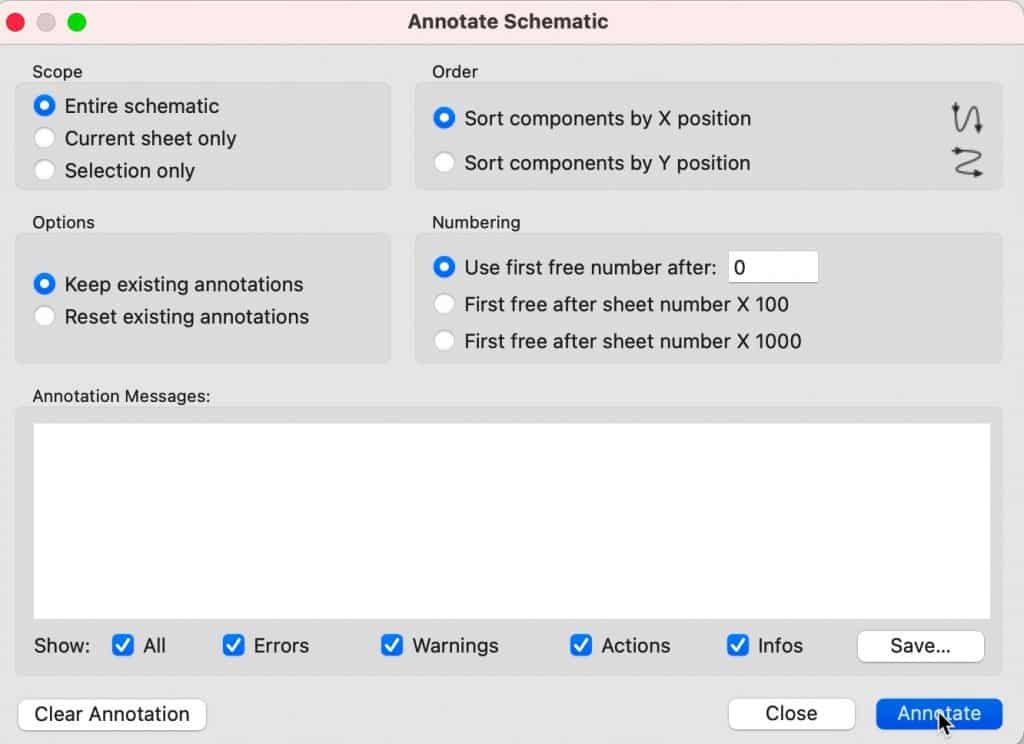
The default setting works well, and I rarely need to change them. Just click “Annotate” to let the tool set the reference IDs and then “Close” to dismiss the window.
Your schematic now looks like this (Figure 3.7.5):
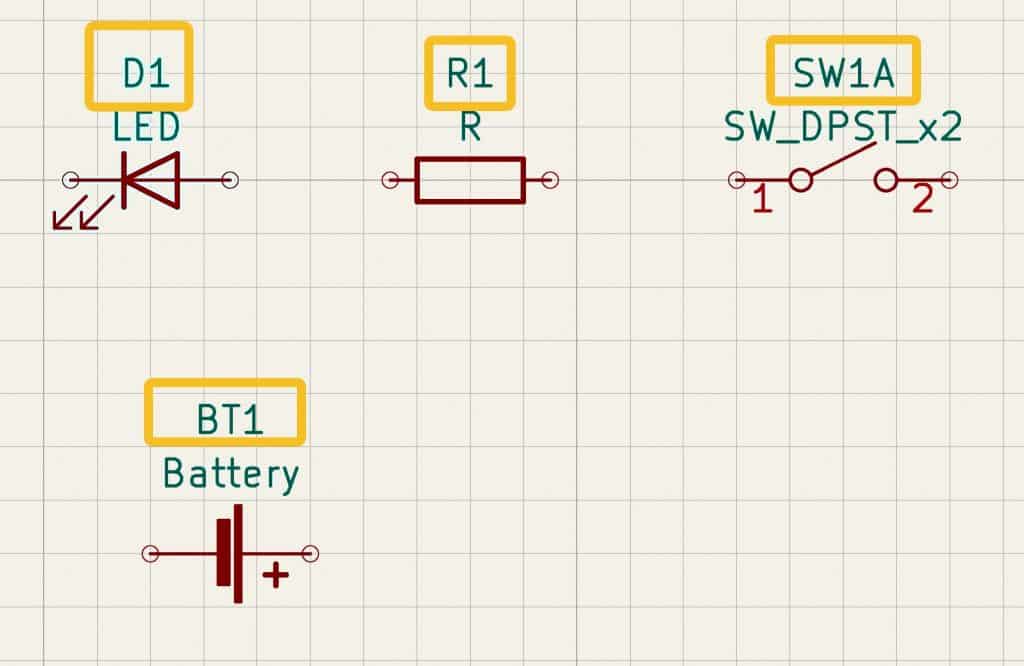
Notice that the question marks are replaced with numbers, and each symbol now has a unique identifier.
Associate
Next up, association. In association, we choose the desired footprint for a symbol. Remember that the footprint defines the physical attributes of a component in the schematic diagram. For example, take the resistor in Figure 3.7.5. What will this resistor look like in the final PCB? Will it be a through-hole component or an SMD? What will be its length and diameter? What are its silkscreen and other graphics?
There are several ways to associate a symbol with a footprint. You can assign a footprint, one symbol at a time, via the symbol’s properties window. For example, for the LED, double-click on the symbol to bring up its properties. In the properties window, notice the Footprint attribute (Figure 3.7.6).
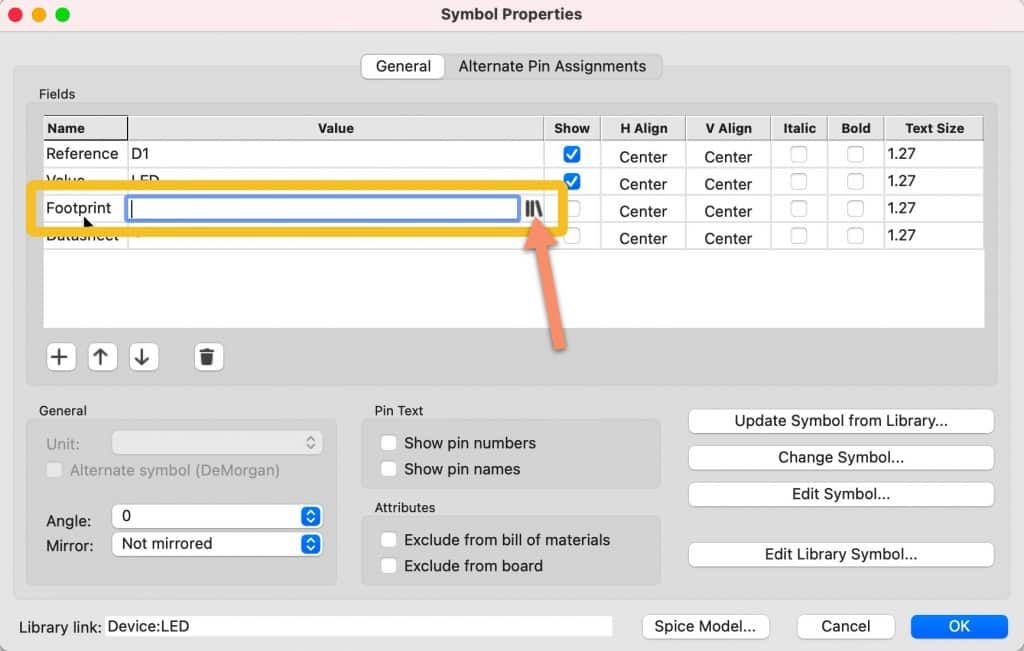
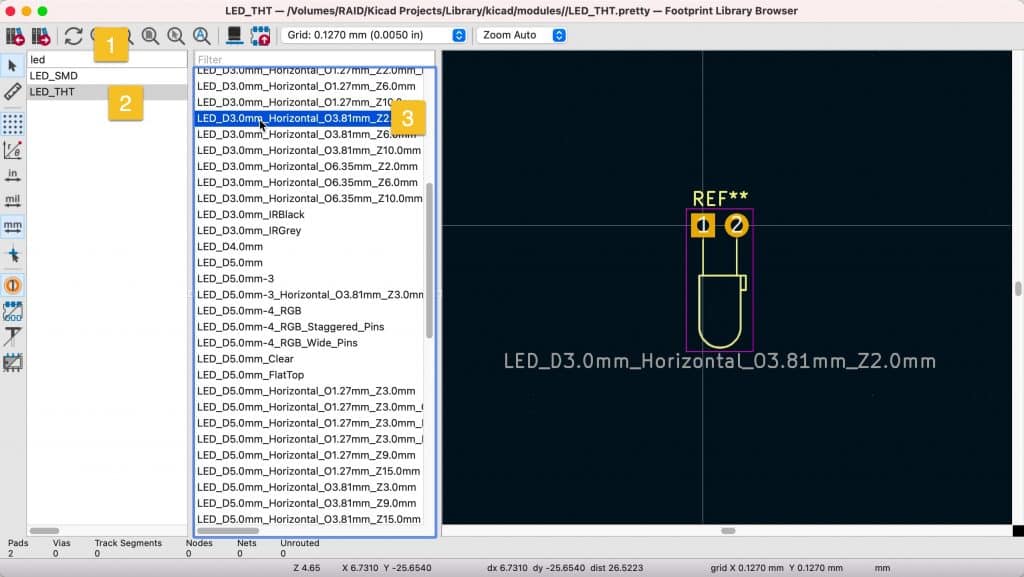
You can type the footprint identifier in the footprint field, although it is safer to click on the footprint library button to bring up the footprint chooser window (Figure 3.7.7). You can use the footprint chooser to search (1) and browse (2) for the desired footprint. Double-click to select it (3) and associate it with the symbol (4) when you find it. Before you close the symbol properties window, click on the “Show” check box of the Footprint property to display the footprint reference in the editor.
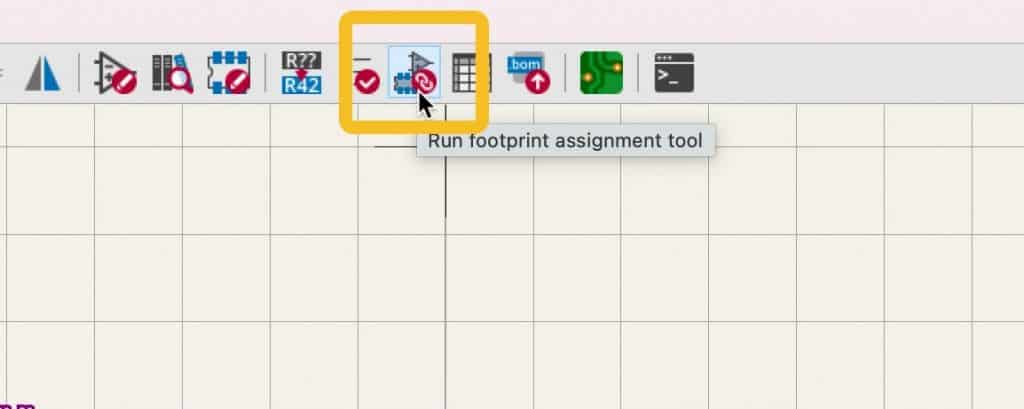
If your schematic only has a small number of symbols, this one-at-a-time method is sufficient. But for larger schematics, you will need a more streamlined approach. For this, Eeschema offers the association tool, which you can access from the top toolbar (Figure 3.7.8).
The associations tool contains three panes (Figure 3.7.9). The middle pane shows the symbols (left side) and their associated footprints (right). The left pane (1) contains a list of footprint libraries, and the right page (3) a list of footprints based on the selected library and the filter settings (top of the window). You can learn how to use the associations tool in detail by reading the dedicated chapter later in this book.
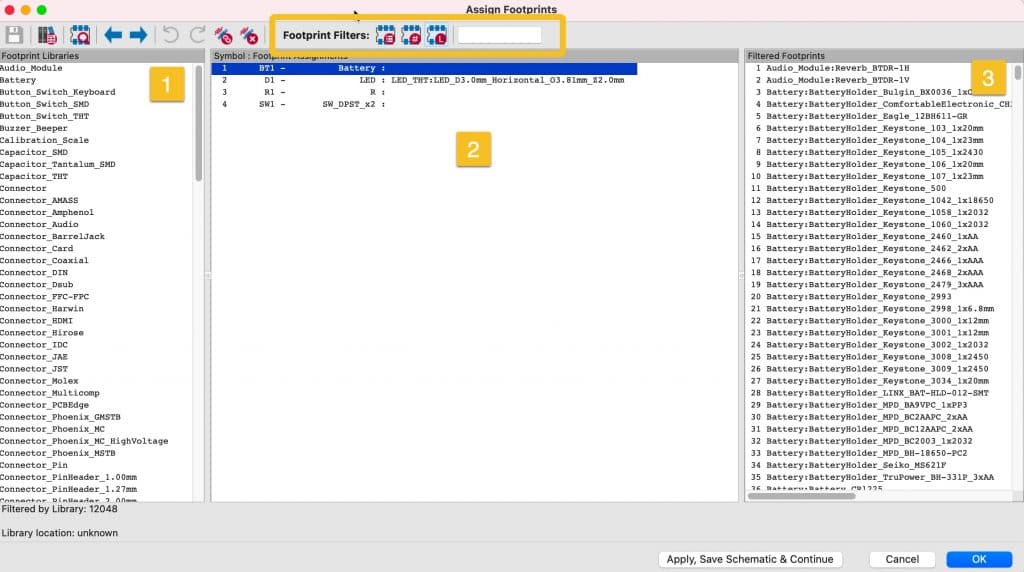
As you can see in the figure above, the LED symbol already has an associated footprint. I manually assigned this footprint earlier in this chapter. You can change this association by selecting the LED’s row and then double-clicking on an alternate footprint from the right pane (3). Also, notice that as you click on a symbol row in the middle pane, Eeschema pans the editor so that you can see the symbol in the schematic.
Let’s re-associate the LED symbol to an appropriate footprint. I have enabled all three filters (description, pins, and library) from the top menu bar. I have typed “led” in the search box. In the left library pane (1), I have selected the “LED_THT” library. In the right pane (3), you will see a listing of all footprints in the selected library and match my filter settings (Figure 3.7.10).
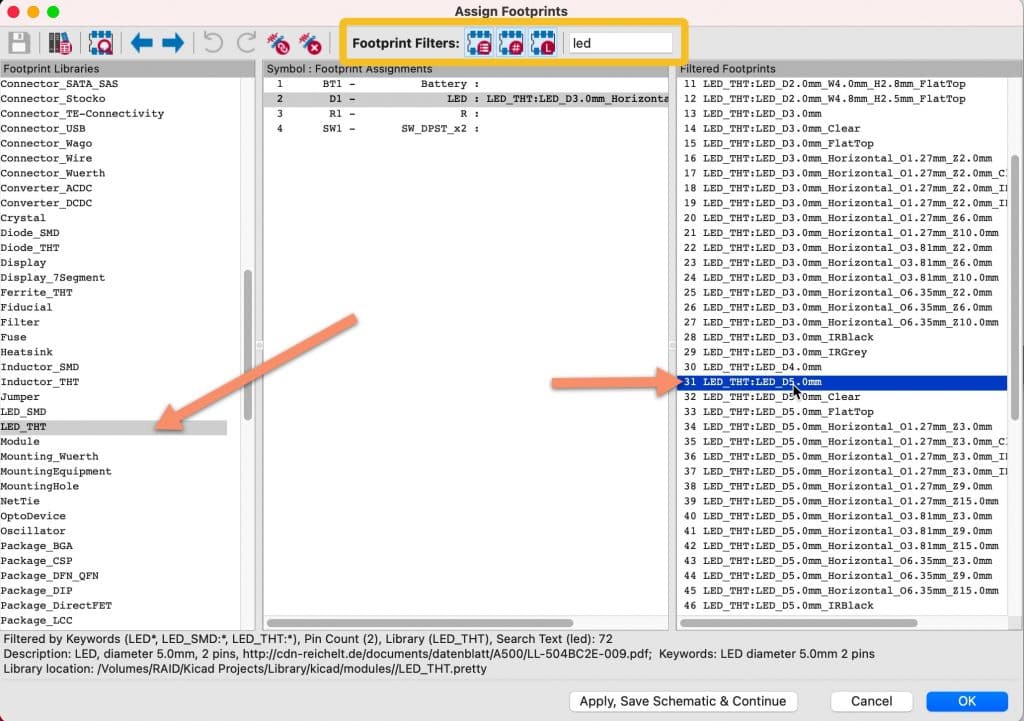
Double-click on the footprint in the right pane and notice how the association appears in the symbol row in the middle pane to finish the association.
Repeat the process so that all four symbols have their associated footprints. You can see my selected associations in Figure 3.7.11 (below).

My schematic editor now looks like this (Figure 3.7.12):
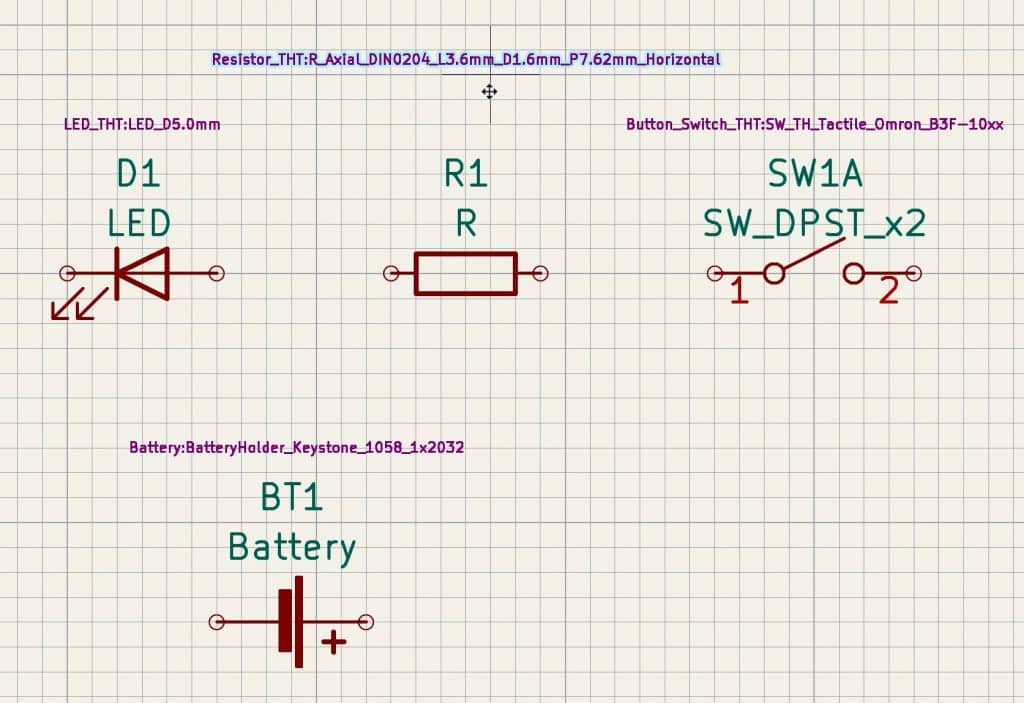
I have set the symbols to show their footprint properties (see earlier in this chapter on how to do this). I have also changed the appearance of the footprint property text to make it smaller. Learn how to do this in the relevant recipe chapter. With the symbol and footprint associations complete, step three of the process is also done. Let’s continue with the wiring in the next chapter.